
ProductAdvice documents
SOAs and ROAs, drafted from your meetings.
Pick a template, choose the meetings and files that matter, and Claras drafts every section of the Statement of Advice or Record of Advice for you to review. Wording you mark as fixed stays word for word.

Document types
Every advice document, one workflow.
The Claras library ships with the Statement of Advice, Record of Advice, Fact Find, Strategy Paper, Paraplanner Request and Implementation Guide, and you can bring your own. Each one is built from the same materials you already have: meetings, attachments, earlier documents and the client record. Open any document to see its sections.
SOA
Statement of Advice
Thirty two sections from About This Document to Supporting Information, with the specialist sections appearing only when they apply.
ROA
Record of Advice
Twelve sections for further advice, from confirmation of circumstances to client acknowledgment, with products and asset allocation only when relevant.
Fact find
Fact Find
Thirteen sections that record everything the advice rests on, from personal details to existing products and goals.
Strategy paper
Strategy Paper
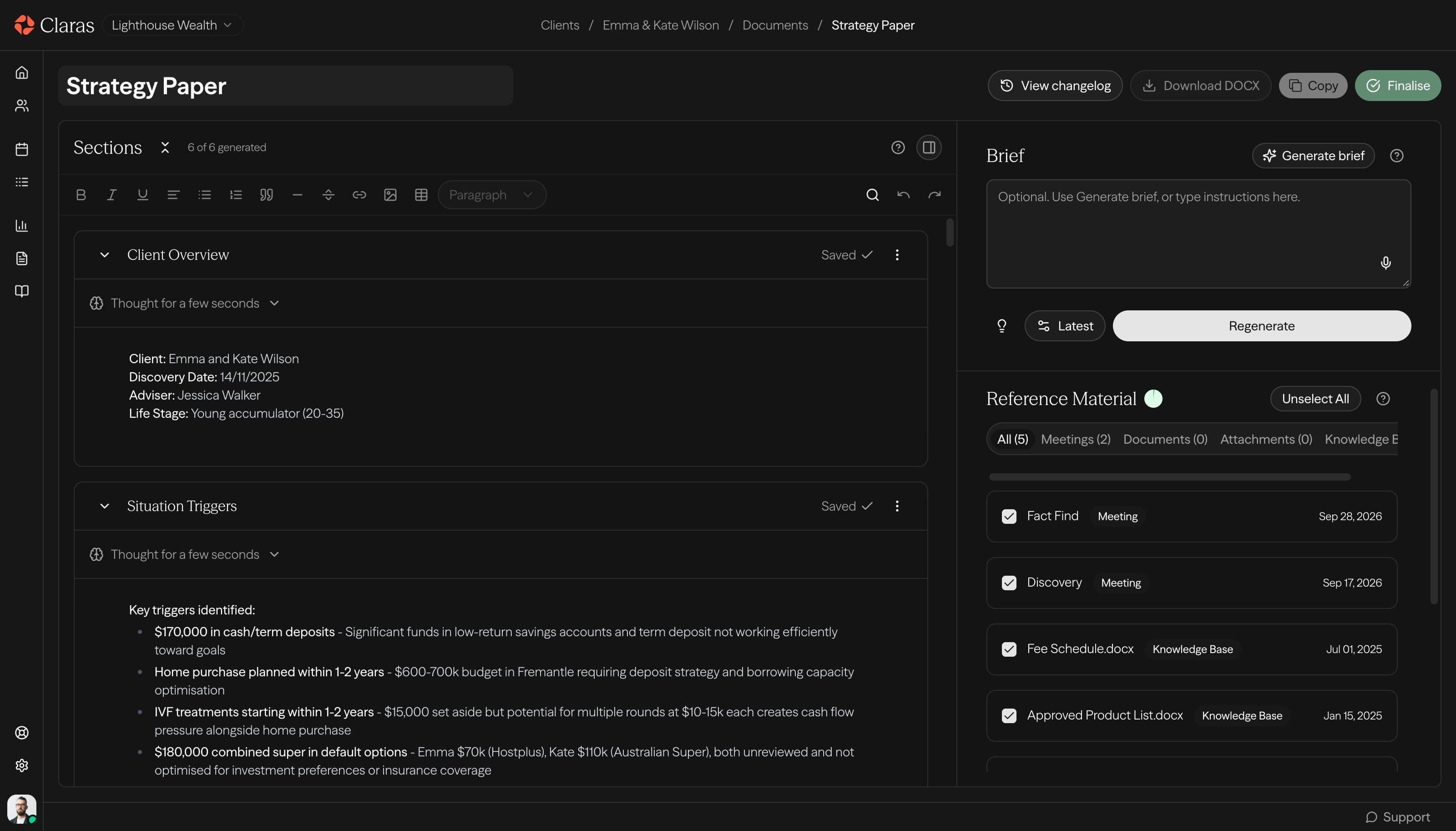
Six sections that turn discovery findings into strategy options, information gaps and compliance flags before the strategy meeting.
Paraplanner request
Paraplanner Request
Twelve sections that give a paraplanner everything from turnaround time to fee disclosure, without a follow up call.
Implementation guide
Implementation Guide
Eight sections that turn accepted advice into a prioritised action list, product details, deadlines and follow up.
SOA
Statement of Advice
Thirty two sections from About This Document to Supporting Information, with the specialist sections appearing only when they apply.
ROA
Record of Advice
Twelve sections for further advice, from confirmation of circumstances to client acknowledgment, with products and asset allocation only when relevant.
Fact find
Fact Find
Thirteen sections that record everything the advice rests on, from personal details to existing products and goals.
Strategy paper
Strategy Paper
Six sections that turn discovery findings into strategy options, information gaps and compliance flags before the strategy meeting.
Paraplanner request
Paraplanner Request
Twelve sections that give a paraplanner everything from turnaround time to fee disclosure, without a follow up call.
Implementation guide
Implementation Guide
Eight sections that turn accepted advice into a prioritised action list, product details, deadlines and follow up.
How it works
From fact find to finished SOA in five steps.
- 1
Choose a template
Start from the Claras library or your licensee’s own SOA and ROA templates. Conditional sections are left out when your sources show they don’t apply, such as SMSF advice in an insurance-only SOA.
- 2
Pick the sources
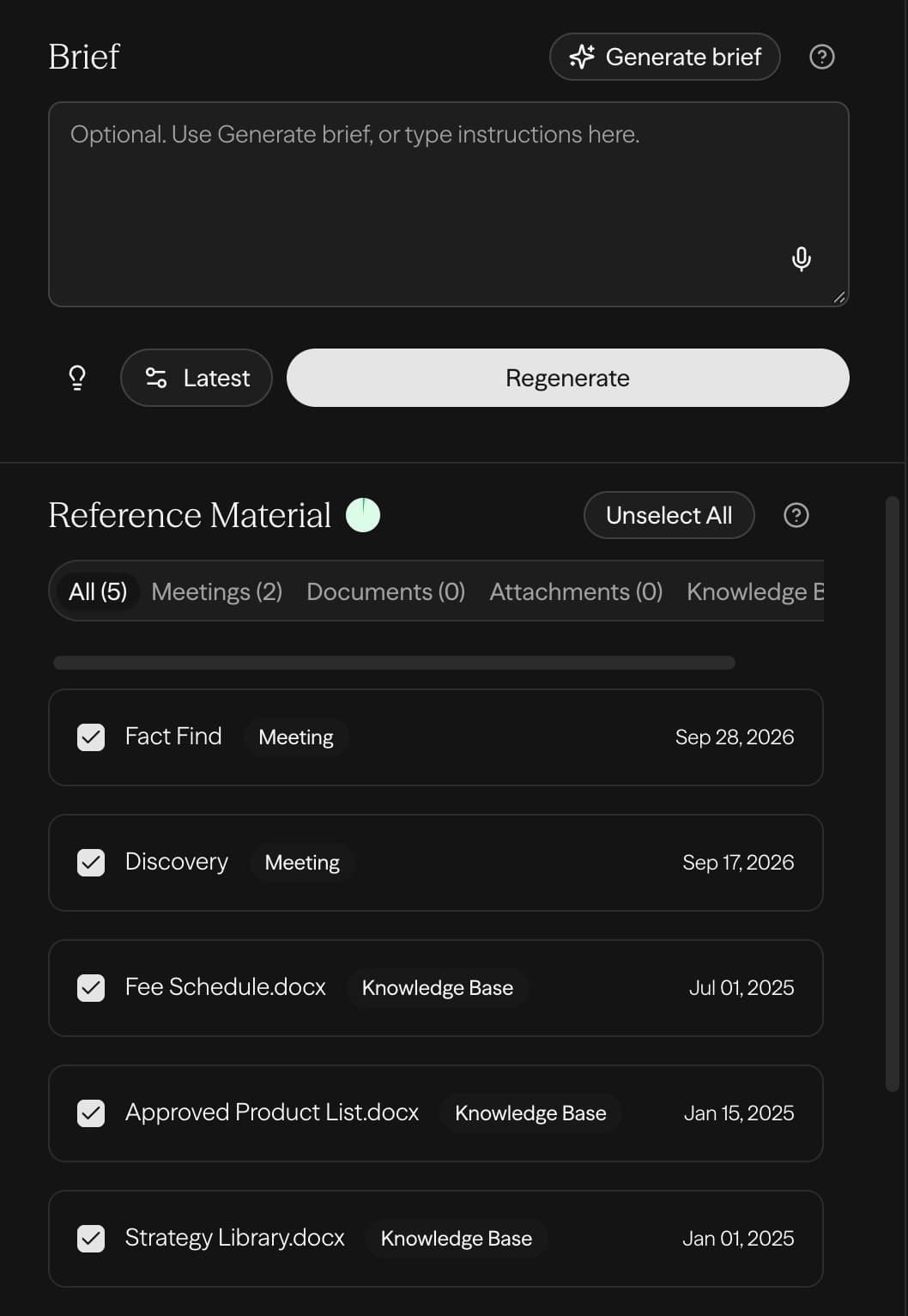
Select the meetings, uploaded files and earlier documents that matter. Claras reads only the parts of each file that matter, so a 40 page fact find doesn’t flood the draft.
- 3
Check the brief
Generate a brief first and Claras summarises what it understands about the client and asks about anything unclear. Fix it here and every section stays consistent.
- 4
Generate and review
Each section drafts on its own and tells you how closely it follows your sources. Select any text, give an instruction, preview the change and accept it.
- 5
Finalise and export
Download a Word document in your practice’s branded template, with table of contents and page numbers, ready for your paraplanner or compliance review.
Compliance
Built for documents your licensee will audit.
Adviser disclosures
Lighthouse Wealth Pty Ltd is an Authorised Representative of
Beacon Financial Services, AFSL 512 884.
Fixed wording, inserted word for word
Drafted by Claras
This advice is valid for 30 days from the date of this document.
Fixed wording, inserted word for word
Fixed wording
Your licensee wording never changes
Turn on fixed text for the AFSL details, disclaimers and licensee clauses that must appear word for word. Claras inserts them exactly as written and only drafts the parts you leave open.
Your Current Situation
lightQuick read-through should suffice
Our Recommendations
standardCheck that assumptions align with your intent
Alternative Strategies Considered
carefulVerify key conclusions and strategic choices
Review guidance
Know where to look hardest
Each section is rated light, standard or careful by how much interpretation went into it. Mark sections reviewed and compliance can see who reviewed each part.
Privacy
Client details stay private
By default, personal information is replaced with placeholders before any content reaches the AI and restored in your document afterwards. Data is hosted in Australia and Claras is SOC 2 certified.
Templates
Your templates, every adviser
Use your licensee’s SOA and ROA templates, set up for you, or start from the Claras library. Conditional sections adapt each document to the scope of advice, so one template covers different scopes.
Capabilities
Everything the SOA needs, nothing you have to retype.
Advice documents pull from every meeting, file and earlier document on the client, so the second SOA is faster than the first.
- SOA, ROA, fact find and strategy paper templates included
- Bring your own licensee templates
- Conditional sections that adapt to the scope of advice
- Fixed wording inserted word for word
- Adviser and licensee details drafted from your practice profile
- Choose concise or verbose drafting when you generate
- Version history on every document, with restore for templates
- Word export in your branded template
Your templates
Make the template yours.
Owners, managers and advisers can create and edit document templates under Templates. Start from the library, your own Word file or a description, then adjust any section heading or outline. Add or refine a section with AI, move sections up or down, and choose the export style that brands the Word file.
Use a library template
Open the template library, pick one and use it. Claras makes a separate copy your practice owns and can edit.
Upload the one you already use
Upload your existing template and Claras builds an editable template from its structure. Then turn on fixed text for the wording that must not change, and upload your Word file as an export style for the branding.
Describe what you need
Tell Claras what the document is for and it generates the sections, outlines and conditional rules for you to refine.
Square brackets are instructions
Inside a section, text in [square brackets] tells Claras what to write. Plain text guides the wording, and fixed text locks it.
Lock fixed text
Turn on fixed text for a section and the wording outside brackets, like your AFSL, phone number or disclaimers, is inserted word for word.
Conditional sections
Mark a section conditional and it only appears when the advice covers it, so one template serves every scope.
Version history and updates
Every change is versioned and can be restored. When a library template you copied improves, review the summary and apply it while keeping your edits, or skip it.
Licensee templates
Templates from your licensee.
Claras sets up licensees’ approved templates for the practices under their licence. If yours is on Claras, you draft from the exact structure they signed off, and they keep control of it.
Select your AFSL
On the Licensee tab under Templates, choose the AFSL your practice operates under. If your licensee has templates in Claras, you can request access.
Your licensee approves
The licensee sees which of their templates your practice uses and when. No client information is shared in either direction.
Their templates appear in your list
Their templates show in the Documents tab under Templates with an Official badge, and anything added in the last week is marked new.
- The licensee controls the content. Their edits reach every practice as soon as they are made.
- You can apply your own export style so the Word file carries your branding, or keep the licensee’s.
- You can duplicate a licensee template into an editable copy only where the licensee allows copies.
- If a connection ends, documents you already created stay available. New documents and regenerating sections from that template stop.
Licensee not on Claras yet?
Start from the Claras library or upload your licensee’s Word template as your own. When your licensee joins, we set up their approved versions for every practice under the licence.
Who it is for
Built for advisers. Governed by licensees.
For advisers
Draft your next document from the meeting you just had.
Record or upload the meeting, pick the template and review the draft. Your first file notes are free and there is no credit card to enter.
For licensees
Share your templates with your advisers.
Send us your approved SOA and ROA templates and we set them up, with the wording that must not change marked as fixed. Every adviser under your licence drafts from the same structure.
Frequently asked questions
Your questions answered.
- Does Claras write a compliant SOA on its own?
Claras drafts every section from your sources and your template, then hands it to you for review. The adviser remains responsible for the advice. The review guidance, fixed wording and audit trail exist to make that review faster and more thorough, not to replace it.
- Can I use my licensee’s SOA template?
- What is the difference between an SOA and an ROA in Claras?
- Where does the information in the document come from?
- Does the AI see my client’s personal details?
- How do I get the finished SOA into my own systems?
Draft your next SOA with Claras.
Sign up in 2 minutes, add a meeting or a fact find, and see the first section drafted. No credit card required.