
Calendar sync
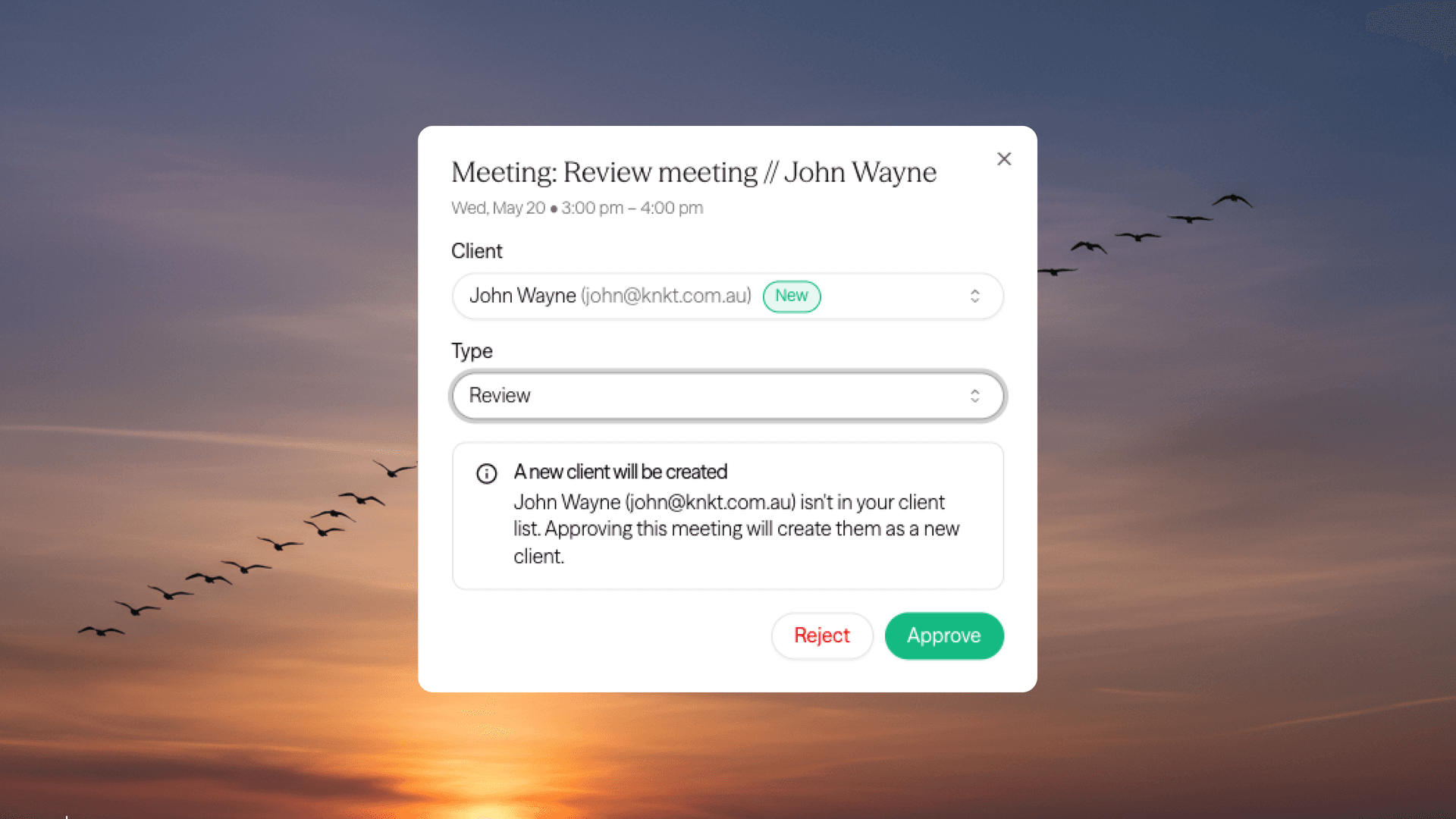
Your schedule now comes to you. Claras pulls upcoming meetings directly from your calendar, so you don't have to create them manually before a client meeting.
How it works
When you enable Calendar sync, Claras imports your upcoming meetings as placeholders on your Schedule page. Internal meetings and generic calendar noise are filtered out automatically - only likely client meetings come through.
Hover over any imported meeting and click Review to confirm the details. You can match the meeting to an existing client, or Claras will offer to create a new client record from the attendees. Once approved, that client's future meetings will link automatically.
When a Teams meeting ends, Claras will automatically process the recording and generate a file note - no manual upload required.
Meetings that were filtered out are available at the bottom of the Schedule page if you need to review them.
Getting started
Connect your Microsoft account under Settings > Integrations, then enable Calendar sync from the Schedule page (or from the Microsoft connection card in Integrations).
Requires a connected Microsoft account
 Connor Disselkoen